CS2 Screenshot API
From inspect link to item image.
Show a CS2 item in your marketplace, inventory tool or trade listing. Send its inspect link with your SteamWebAPI key and get a screenshot with both sides, a single view or a transparent background.
/steam/api/screenshot
Included at no extra cost in every package, including Free and Free+, subject to your package limits. Access and limits
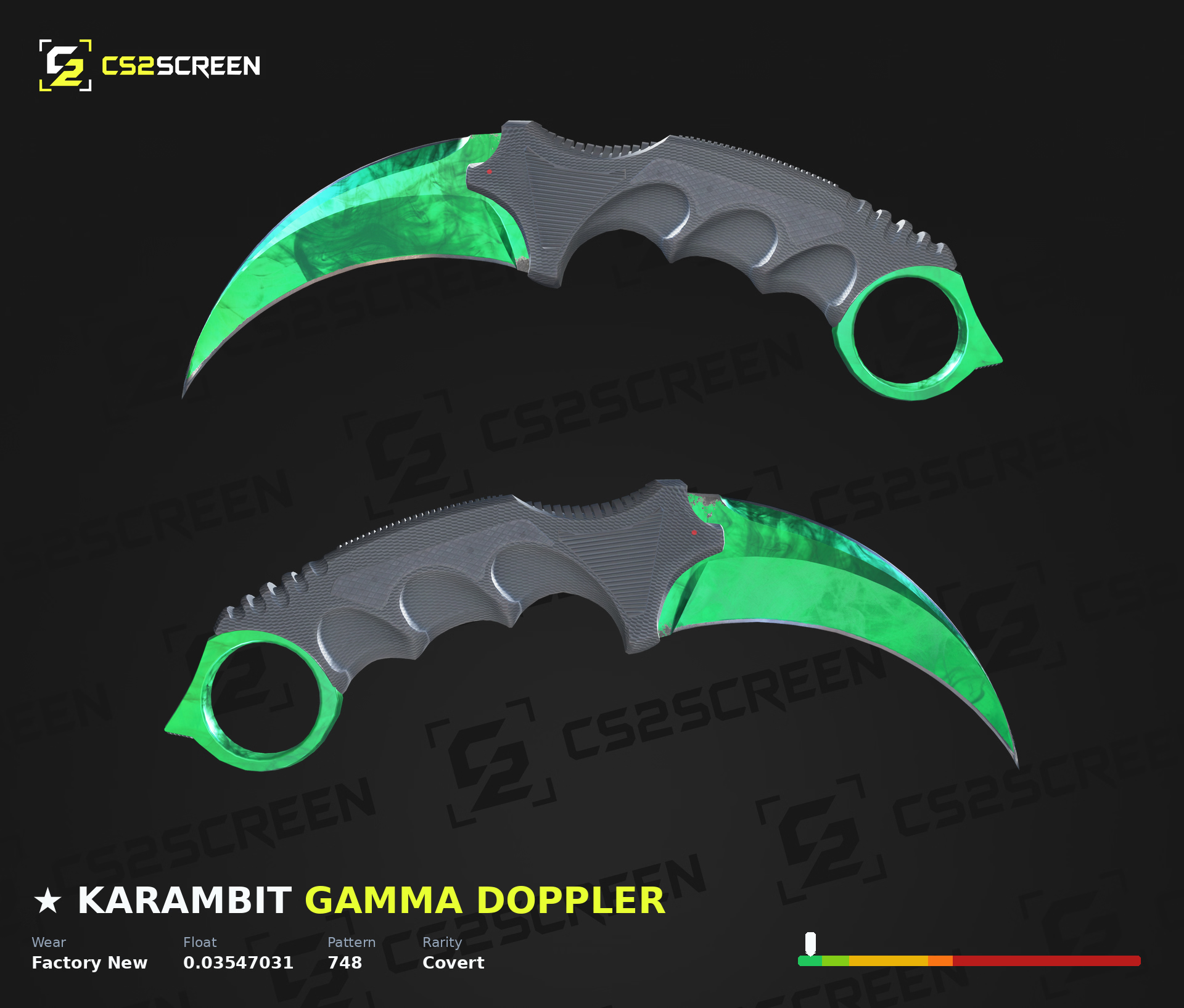
One item. Choose how to show it.
These are saved responses from our Screenshot API using the same inspect link. Compare the front and back as cutouts, or keep both sides together with a background that fits your layout.
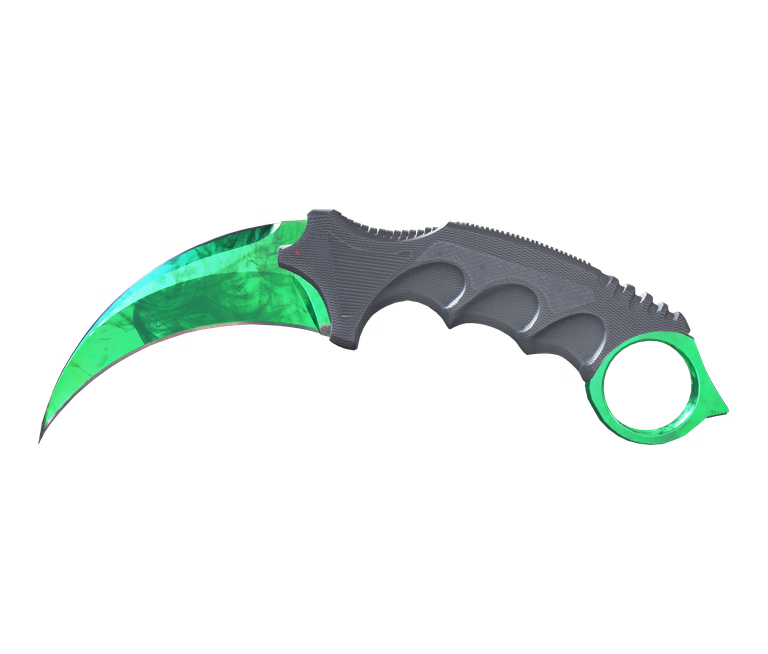
Transparent front
mode=front&view=transparent
Place the item on your own page background. The checkerboard is only here to show transparency.
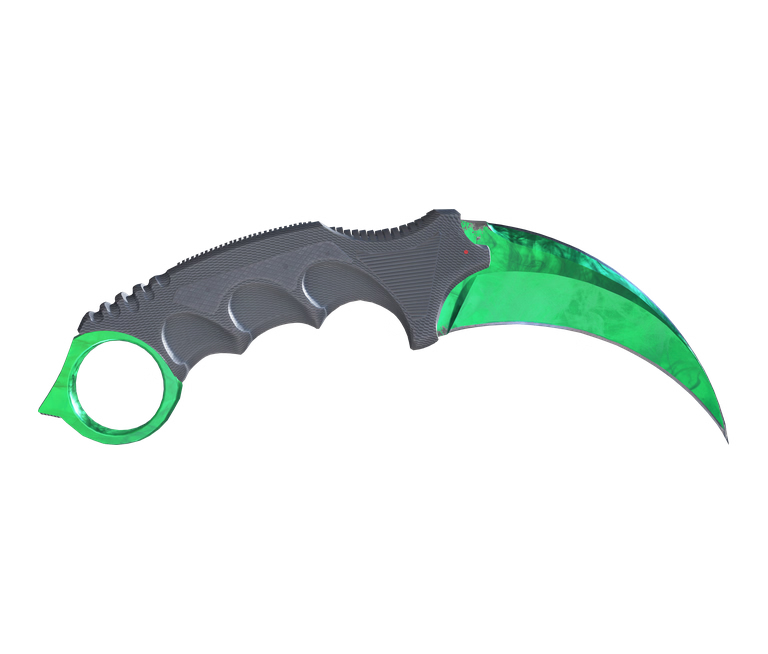
Transparent back
mode=back&view=transparent
Show the reverse side beside the front, or use it as a second image in your item gallery.
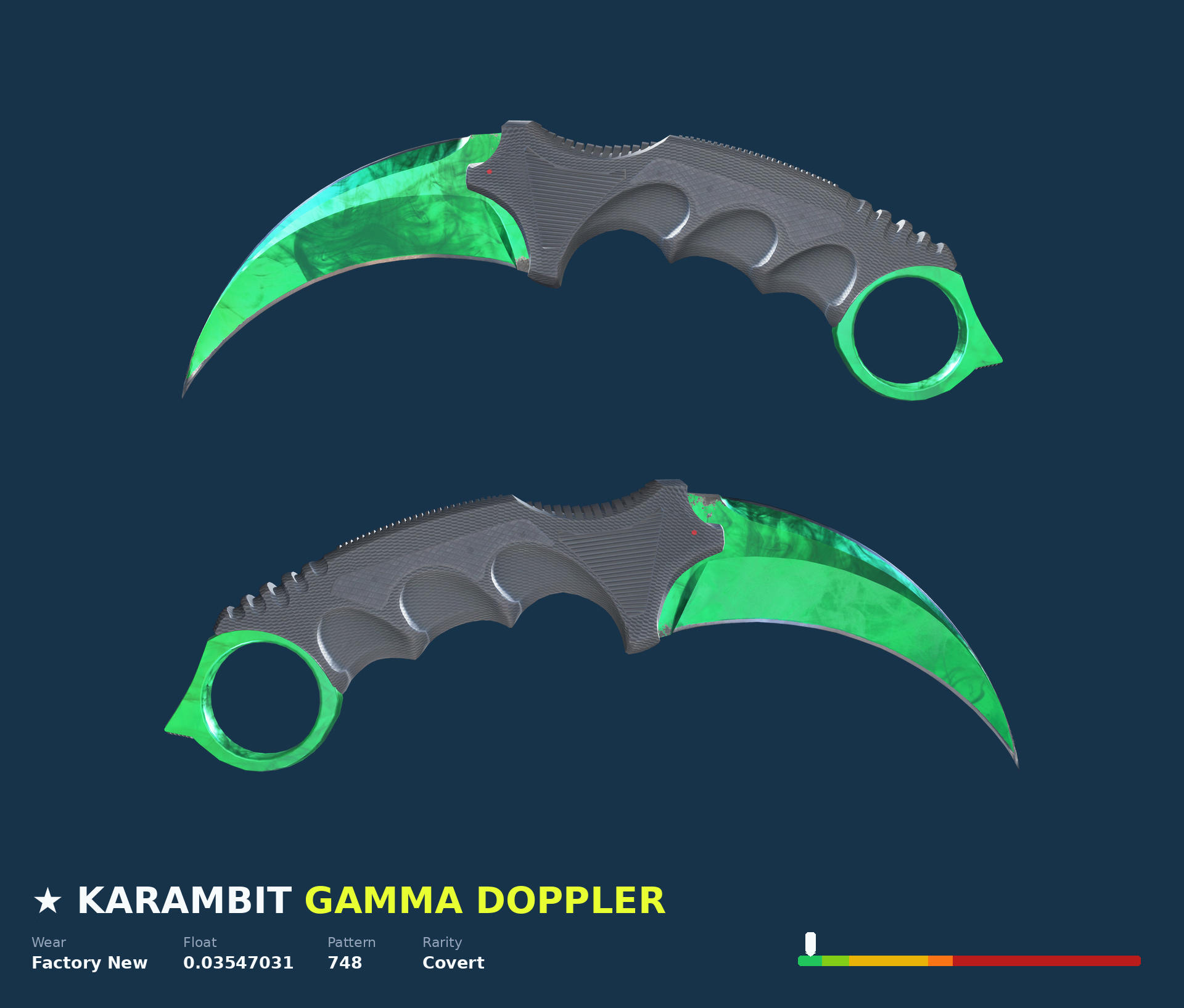
Your background color
background_color=%2318324B
Replace the default background with a solid color. Both sides and float information stay enabled.
Transparent output supports front or back and hides float information automatically. For a combined image, use mode=both with the default background or a solid color.
Your first screenshot
Start with your SteamWebAPI key and a full CS2 inspect link. Send the key in the X-Api-Key header and URL-encode the link. No styling options are needed for the default image shown above.
curl --get 'https://www.steamwebapi.com/steam/api/screenshot' \
  --header 'X-Api-Key: YOUR_STEAMWEBAPI_KEY' \
  --header 'Idempotency-Key: YOUR_UNIQUE_REQUEST_ID' \
  --data-urlencode 'url=YOUR_FULL_INSPECT_LINK' \
  --max-time 100 \
  --dump-header screenshot-headers.txt \
  --output screenshot-response
Replace the three placeholders before running the request. Check the saved headers: 200 with image/avif means you can save the body as screenshot.avif. A 202 body is JSON containing a pending job.
What you get by default
CS2, both sides, 1920px wide, the standard background aligned to the top, and float information. The response is an AVIF image. Keep your API key on your server when integrating this into a public website.
Request a transparent cutout
Insert these options before --max-time in the request above and choose a new Idempotency-Key. Use mode=back for the reverse side.
--data-urlencode 'mode=front' \
--data-urlencode 'view=transparent' \
--data-urlencode 'width=1920'
Parameters and defaults
Send these options as query parameters to /steam/api/screenshot. The Key header and key query parameter are also accepted for authentication.
Scroll the table sideways to see all options.
| Parameter | Default | Options |
|---|---|---|
url | Required | Full steam:// CS2 inspect link, URL-encoded. Maximum 16384 bytes. |
game | cs2 | Currently only cs2. |
mode | both | front, back or both. With view=transparent, an omitted mode defaults to front. |
width | 1920 | 256–2048 pixels. Height scales proportionally. Below 960, set with_float=false. |
view | Omitted | Set transparent for a cutout. Only compatible with front or back; float information is disabled by default. |
background_color | Default image | Use a hex color such as #18324B to replace the image. Encode # as %23. Incompatible with transparent output. |
with_float | true | true, false, 1 or 0. Requires width ≥ 960 when enabled. Defaults to false for transparent output and cannot be enabled with it. |
item_namepaint_name | Original labels | Custom item and finish labels, up to 64 characters each. |
format | screen | screen, download or base64. All image output is AVIF. |
idempotency_key | Generated | Alternatively use the Idempotency-Key header. 1–128 ASCII letters, digits, ., _, : or -. |
Use both, not bothsides. Custom background-image URLs, alignment settings, logos and watermarks are not public options on this endpoint. Unsupported or repeated parameters return 422.
Handle the image or a pending job
Always inspect the HTTP status before treating the response as an image. A successful request can return the result immediately or provide a job ID while rendering finishes.
- 200 · screen
- AVIF bytes with
Content-Type: image/avif, displayed inline. - 200 · download
- The same AVIF, with an attachment filename of
screenshot.avif. - 200 · base64
- JSON with
status: "success"andimage: "data:image/avif;base64,...". - 202 · pending
- JSON with a job ID and a
Retry-Afterheader. Wait for that delay before requesting the result.
{
  "status": "pending",
  "job_id": "YOUR_JOB_ID",
  "idempotency_key": "YOUR_UNIQUE_REQUEST_ID"
}
Retrieve the result
Use the same API key and the returned job_id. Leave out the inspect link and render options. If the job is still running, the response is 202 again.
curl --get 'https://www.steamwebapi.com/steam/api/screenshot' \
  --header 'X-Api-Key: YOUR_STEAMWEBAPI_KEY' \
  --data-urlencode 'job_id=YOUR_JOB_ID' \
  --data-urlencode 'format=download' \
  --max-time 100 \
  --dump-header screenshot-headers.txt \
  --output screenshot-response
Save the completed image. Results expire after three hours. Store the image yourself for longer use; the API does not return a public image URL.
Retry without creating another render
Choose a unique Idempotency-Key before the first request. After a timeout, reuse that key with the same inspect link and options. A new image configuration needs a new key. Result lookups and retries still count towards your screenshot quota.
For 422, check the parameter combination. For 429, wait for Retry-After. A 410 means the stored image expired. See the full reference for all error codes and retry rules.
From inventory data to a visual listing
Use the Steam Inventory API to find the CS2 item, then pass its available inspectlink into the screenshot endpoint as url. Items without an inspect link should be skipped.
- Request the image on your server. Keep your SteamWebAPI key out of public HTML and browser requests.
- Save the successful AVIF response. Use your own storage or CDN to serve it alongside the listing.
- Reuse the saved image. Serve that file when visitors open the item, rather than starting a new render for every page view.
For a marketplace listing, both sides show the item in one image. For inventory grids, a transparent front view can sit directly on your own background. Use a separate back view when visitors need a closer comparison.
Need visitors to rotate an item instead of viewing a still image? Explore the CS2 3D Viewer.
Your key, with separate screenshot limits
Authenticate with your existing SteamWebAPI key. Screenshots are included at no extra cost in every package, including Free and Free+, subject to your package limits. Screenshot-specific limits take precedence; when none are configured, your package's Global limits apply. Explicit zero day/month quotas block access. First use may take longer while access is initialized.
Screenshot requests have their own per-minute, per-day and per-month limits. They do not consume ordinary SteamWebAPI API credits. Read your current limits and counters on demand:
curl 'https://www.steamwebapi.com/steam/api/screenshot/usage' \
  --header 'X-Api-Key: YOUR_STEAMWEBAPI_KEY'
{
"status": "success",
"active": true,
"limits": { "minute": 100, "day": 1000, "month": 10000 },
"usage": { "minute": 1, "day": 25, "month": 240,
"total": 500, "blocked": 0 },
"timezone": "UTC",
"period": "calendar",
"unit": "authenticated_requests"
}Illustrative numbers, not a plan allowance. A null limit means unlimited. Day and month counters reset at UTC calendar boundaries. total covers retained history, not necessarily lifetime usage. Avoid checking usage before every render.
Frequently asked questions
Do I need a Steam bot or a running game client?
No. Rendering runs on our screenshot service. Your application sends a CS2 inspect link with your SteamWebAPI key and receives the image, or a job ID while rendering finishes.
Which API key and plan do I use?
Use your existing SteamWebAPI API key. Screenshots are included at no extra cost in every package, including Free and Free+, subject to your package limits. Screenshot-specific limits take precedence; otherwise your package's Global limits apply. The usage endpoint reports your actual screenshot limits.
Can I get a transparent image of both sides?
Transparent output supports one side per request: mode=front or mode=back with view=transparent. To show both sides with transparency, request the two images separately. mode=both uses the default background image or a solid background color.
Can I use my own background or logo?
You can choose a solid background_color and customize the item_name and paint_name labels. The default background image is selected automatically. Custom background-image URLs, logos and watermarks are not parameters on this endpoint.
Does the API return PNG or a public image URL?
The new endpoint returns AVIF image bytes, a downloadable AVIF, or JSON containing a base64 AVIF data URL. It does not return a public image URL. Save the completed image to your own storage if you want to publish or reuse it.
How long does rendering take, and how long is the result kept?
Rendering time depends on the item and current capacity. A request may return HTTP 202 with a job ID and Retry-After. Retrieve the result with the same API key after that delay. Completed results expire after three hours, so save images you need to keep.
Do retries and result lookups count towards my quota?
Yes. Screenshot quotas count authenticated requests, including render retries and result retrieval. Reusing an Idempotency-Key avoids creating another render job after a timeout, but does not make the request free. Screenshot counters are separate from ordinary SteamWebAPI API credits.
What happens to the existing Float Screenshot API?
The deprecated /steam/api/float/screenshot endpoint keeps its existing PNG response, parameters and billing behavior. Existing integrations are not redirected. Migrating to /steam/api/screenshot is explicit because its parameters, AVIF output and separate screenshot quota differ.
Put your first item in the picture.
Start with an inspect link and your SteamWebAPI key. Use the default image, then adjust the view to fit your product.